Lessons
HTML
- HTML HOME
- HTML Introduction
- HTML Editors
- HTML Basic
- HTML Elements
- HTML Attributes
- HTML Headings
- HTML Paragraphs
- HTML Styles
- HTML Formatting
- HTML Quotations
- HTML Comments
- HTML Colors
- HTML CSS
- HTML Links
- HTML Images
- HTML Tables
- HTML Lists
- HTML Blocks
- HTML Classes
- HTML Id
- HTML Iframes
- HTML JavaScript
- HTML File Paths
- HTML Head
- HTML Layout
- HTML Responsive
- HTML Computercode
- HTML Entities
- HTML Symbols
- HTML Charset
HTML5
HTML Graphics
HTML Media
HTML APIs
HTML Examples
HTML References
- HTML Tag List
- HTML Events
- HTML Colors
- HTML Canvas
- HTML Audio/Video
- HTML Doctypes
- HTML Character Sets
- HTML URL Encode
- HTML Lang Codes
- HTML Messages
- HTML Methods
- PX to Em Converter
- Keyboard Shortcuts
HTML Forms
HTML Editors
HTML Editors
Write HTML Using Notepad or TextEdit
Web pages can be created and modified by using professional HTML editors.
However, for learning HTML we recommend a simple text editor like Notepad (PC) or TextEdit (Mac).
We believe using a simple text editor is a good way to learn HTML.
Follow the four steps below to create your first web page with Notepad or TextEdit.
Step 1: Open Notepad (PC)
Windows 8 or later:
Open the Start Screen (the window symbol at the bottom left on your screen). Type Notepad.
Windows 7 or earlier:
Open Start > Programs > Accessories > Notepad
Step 1: Open TextEdit (Mac)
Open Finder > Applications > TextEdit
Also change some preferences to get the application to save files correctly. In Preferences > Format > choose "Plain Text"
Then under "Open and Save", check the box that says "Display HTML files as HTML code instead of formatted text".
Then open a new document to place the code.
Step 2: Write Some HTML
Write or copy some HTML into Notepad.
<!DOCTYPE html>
<html>
<body>
<h1>My First Heading</h1>
<p>My first paragraph.</p>
</body>
</html>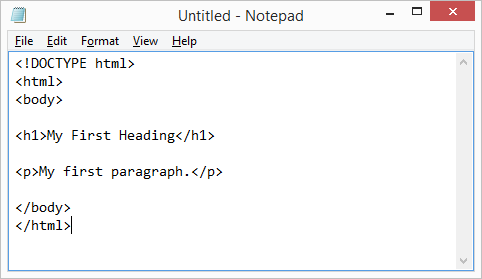
Step 3: Save the HTML Page
Save the file on your computer. Select File > Save as in the Notepad menu.
Name the file "index.htm" and set the encoding to UTF-8 (which is the preferred encoding for HTML files).
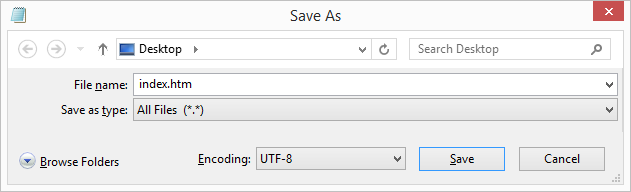
You can use either .htm or .html as file extension. There is no difference, it is up to you.
Step 4: View the HTML Page in Your Browser
Open the saved HTML file in your favorite browser (double click on the file, or right-click - and choose "Open with").
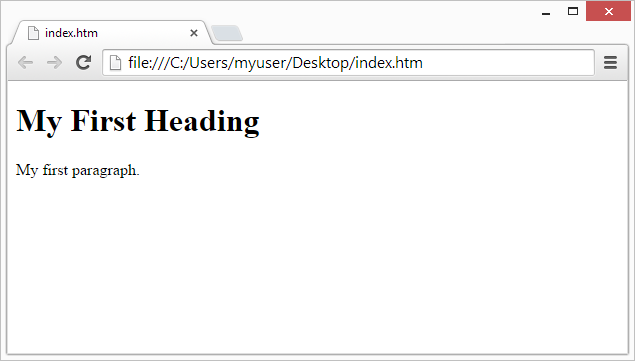
The result will look much like this: